
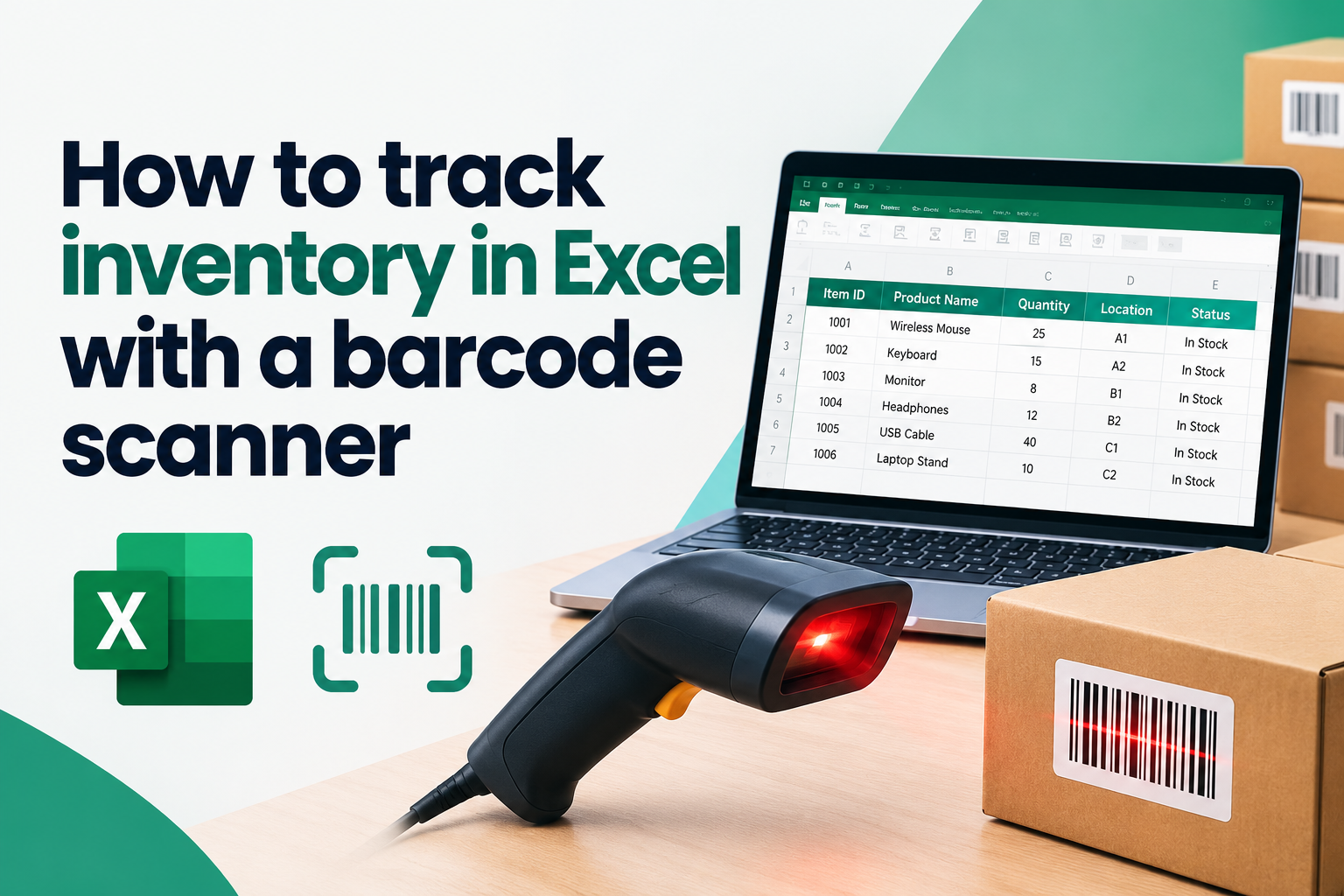
Learning how to track inventory in excel with a barcode scanner is one of the simplest ways for small businesses to stay organized without buying expensive software. Instead of typing product names and quantities by hand, you just scan a barcode and let Excel record the item instantly, which saves time and reduces costly typing mistakes. This method works well for retail shops, warehouses, home businesses, repair shops, and offices that need a clear view of stock levels. In this guide, you will learn what you need, how to set up your sheet, how to scan items in and out, and how to avoid common errors. By the end, you will have a practical system you can start using right away.
Many beginners think barcode inventory requires advanced skills, but Excel makes it very approachable. A basic USB scanner acts like a keyboard, so when you scan a label, the code appears in the selected cell automatically. With a well-planned spreadsheet, simple formulas, and consistent scanning habits, you can track quantities, locations, purchase dates, and reorder points. Keep reading to discover step-by-step setup instructions, real examples, best practices, and answers to common questions.
Why Barcode Inventory Tracking In Excel Works Well
Using Excel with a barcode scanner gives you speed, accuracy, and control without monthly fees. It bridges manual counting and full inventory software, making it perfect for growing operations.
1. Faster Data Entry For Busy Teams
Scanning a barcode takes less than a second, while typing a long product code can take ten seconds or more and often introduces errors. For teams receiving dozens of boxes daily, this time saving adds up quickly and allows staff to focus on customer service, shelving, and order packing instead of paperwork. Faster entry also means stock counts stay current throughout the day.
2. Improved Accuracy Across Stock Counts
Manual typing leads to transposed numbers, misspelled names, and duplicate entries that throw off your entire inventory balance. A barcode scanner reads the exact code printed on the label every time, so Excel receives consistent and correct data. This accuracy improves reorder decisions, reduces missing item searches, and builds trust in your reports during audits and monthly reviews.
3. Low Cost Setup For Small Businesses
Most small businesses already have Excel and a computer, so the only extra cost is an affordable USB barcode scanner and labels. There are no subscription fees, implementation consultants, or complex training sessions required to get started. This low barrier makes barcode tracking in Excel ideal for startups, side businesses, pop-up shops, and nonprofits that need professional control on a tight budget.
4. Flexible Sheets For Any Product Type
Excel lets you design columns that match your exact workflow, whether you sell clothing sizes, electronic parts, food with expiry dates, or tools with serial numbers. You can add fields for supplier, location, cost, price, minimum stock, and notes without being forced into rigid software categories. This flexibility helps you track what actually matters for your products and customers.
5. Easy Stock Visibility And Reporting
Once scans are recorded in Excel, you can sort, filter, and summarize stock by category, location, or supplier in just a few clicks. Simple formulas show total quantity on hand, low stock alerts, and inventory value automatically. Managers get a clear picture of what is selling fast, what is overstocked, and what needs reordering without waiting for end-of-month counts.
6. Smooth Path To Future Growth
Starting with Excel teaches your team good scanning habits like consistent labeling, daily updates, and location tracking. When your business grows large enough to need dedicated inventory software, you will already have clean product codes and historical data to import. This foundation makes future migration much faster and prevents the chaos of switching from paper records to a complex system.
Benefits Of Tracking Inventory In Excel With Barcodes
Combining Excel and barcode scanning delivers practical benefits that improve daily operations and long-term planning for teams of any size.
- Fewer Human Errors: Scanning eliminates typos and ensures each product code is entered exactly the same way every time.
- Time Savings: Check-ins, check-outs, and cycle counts finish much faster when staff scan instead of writing or typing.
- Real Time Stock Levels: Each scan updates quantities immediately, so you always know what is available to sell or use.
- Better Reorder Control: Low stock formulas and conditional alerts warn you before popular items run out completely.
- Lower Training Needs: New employees learn to point and scan in minutes, with no need to memorize codes or procedures.
- Professional Organization: Clean codes, locations, and labels create a tidy stockroom that is easier to audit and manage.
What You Need To Track Inventory With A Barcode Scanner
Getting started does not require much equipment, but choosing the right tools will make scanning smooth and reliable from day one.
1. Reliable Computer With Excel Installed
You need a Windows or Mac computer with a recent version of Excel that supports formulas, filters, tables, and conditional formatting. A laptop near the receiving area works well, and a desktop in the stockroom is even better for daily scanning. Make sure Excel autosave is turned on so you never lose scan data if power is interrupted unexpectedly.
2. USB Barcode Scanner For Quick Entry
A wired USB handheld scanner is the best choice for beginners because it plugs in and works like a keyboard with no setup. When you scan, it types the code and presses Enter automatically, moving to the next row. Choose a model that reads common one-dimensional codes and has good reviews for scan distance and durability in busy work areas.
3. Printed Barcode Labels For Products
Each product or bin needs its own unique barcode label so Excel can tell items apart during scanning. You can buy preprinted code labels from suppliers or print your own using blank sticker sheets and a regular printer. Use durable labels that resist smudging, and place them where they are easy to scan without moving heavy boxes repeatedly.
4. Well Planned Excel Inventory Template
Your Excel file should have clear columns for barcode, product name, category, quantity, location, supplier, cost, and last updated date. Format the sheet as an official Excel Table so filters and formulas expand automatically when new rows are added. A clean template prevents confusion and ensures every scan lands in the correct field during fast receiving sessions.
5. Barcode Font Or Generator For New Codes
If your products do not arrive with barcodes, you will need a way to create your own sequential codes for Excel. Many businesses use free barcode generator tools to create printable sheets, then install a barcode font in Excel to display codes as scannable symbols. Keep a master list of assigned codes so you never assign the same number to two different products accidentally.
6. Backup Storage And Label Supplies
Inventory data is critical, so set up automatic backup to cloud storage or an external drive to protect your Excel workbook. Keep extra label rolls, ink, and a spare scanner cable on hand so a small equipment issue does not stop receiving or sales. Regular backups and supplies ensure your barcode system keeps running smoothly during peak seasons and busy promotions.
Set Up Your Excel Inventory Sheet For Barcodes
Follow these practical steps to build a clean Excel sheet that works perfectly with your scanner and supports daily stock moves.
- Create Core Columns: Open a new workbook and add headers for Barcode, Product Name, Category, Quantity On Hand, Location, Reorder Level, Unit Cost, and Last Scan Date.
- Format As Excel Table: Select your headers and convert the range to a Table so sorting, filtering, and formulas apply automatically to new items.
- Set Data Types Correctly: Format Barcode as Text to preserve leading zeros, Quantity as Number, and Dates as Short Date for accurate sorting.
- Add Quantity Formulas: Use simple SUM and subtraction formulas or a separate transaction sheet to calculate current stock from incoming and outgoing scans.
- Add Low Stock Alerts: Apply conditional formatting to highlight Quantity On Hand in red when it falls at or below the Reorder Level column.
- Configure Scanner Enter Key: Program your scanner to send an Enter key after each scan so Excel moves down to the next row automatically.
- Test With Sample Scans: Scan five to ten products, verify codes appear correctly, and adjust column widths and text formatting as needed.
- Lock Header And Key Formulas: Freeze the top row and protect formula cells so staff can scan and edit quantities without breaking calculations.
How To Generate Barcodes For Excel Inventory
Creating your own barcodes lets you label shelves, bins, and products that arrive without scannable codes and keep everything consistent.
1. Assign Simple Unique Product Codes
Start by listing all products in Excel and giving each one a short unique code using numbers only, such as 10001, 10002, and 10003. Avoid using spaces or special symbols that some scanners may misread or that Excel may reformat unexpectedly. Simple sequential codes are easy to generate, easy to sort, and reduce the risk of duplicates across large catalogs with many variations.
2. Choose A Common Barcode Symbology
For internal inventory, Code 39 or Code 128 are reliable choices because most USB scanners read them without extra configuration. Check your scanner manual to confirm which formats are enabled by default before printing hundreds of labels. Sticking to one symbology across your business keeps printing simple and ensures every scanner and phone app can read your labels consistently.
3. Create Printable Labels From Excel
You can merge your Excel code list with label templates to print sheets of stickers on a standard office printer. Install a matching barcode font, add asterisks around codes if Code 39 requires them, and increase font size for easy scanning. Print a test page first, scan each label into Excel, and confirm the scanned value matches the product code exactly.
4. Label Bins Shelves And Locations
In addition to product labels, create location barcodes for aisles, shelves, and bins such as A-01, B-02, or RECEIVING. Scanning the location before scanning products helps Excel record where items are stored. Clear location labels speed up picking, reduce misplaced stock, and make it easy for new staff to find items without asking for help repeatedly.
5. Protect Labels For Long Term Use
Choose matte labels or cover printed barcodes with clear tape to prevent glare that can slow down scanning. Avoid placing labels on curved surfaces, seams, or dusty areas where they can peel or fade quickly. Durable labels stay readable for months, which means fewer rescans, faster counts, and more reliable inventory records throughout the year.
6. Maintain A Master Code List
Keep one protected sheet in your workbook that lists every barcode, product name, and creation date as your official reference. When adding new products, check this list first to avoid reusing codes, and never delete old codes that may appear in past transactions. A clean master list prevents confusion, supports accurate reporting, and simplifies future upgrades to inventory software.
How Excel Barcode Inventory Improves Small Business Control
Small businesses often lose money from overstocking, stockouts, and manual errors that go unnoticed for weeks. A barcode system in Excel brings structure to daily routines without adding complexity for owners and staff.
When every receipt and sale starts with a scan, quantities stay honest and up to date. Owners can check one file to see what arrived today, what sold yesterday, and what needs ordering tomorrow. This visibility reduces emergency purchases and helps cash flow stay predictable.
Excel also makes accountability easier because each transaction can include date, user, and location details. If numbers do not match, you can trace back to specific scans and correct the process. Over time, this builds discipline and reduces shrinkage from misplacement or mishandling.
For example, a small hardware store can scan deliveries into a receiving sheet, move items to shelf locations, and deduct sales at checkout. The owner reviews low stock highlights each morning and places one accurate supplier order instead of guessing. Customers find items in stock more often and trust improves steadily.
The takeaway is simple: consistent scanning plus a clean Excel file gives small teams big-business clarity. You spend less time searching, counting, and fixing mistakes, and more time serving customers and growing sales with confidence.
Practical Barcode Inventory In Excel Use Cases
Excel barcode tracking fits many industries because it adapts to different products, locations, and workflows with minimal changes.
1. Small Retail Store Stock Control
Retail shops use barcode scanning in Excel to receive shipments, track shelf quantities, and spot fast sellers quickly. Staff scan items at delivery, place them in the correct section, and deduct stock during sales or daily counts. Owners use filters by category and supplier to plan reorders, run promotions on slow items, and prepare accurate counts for seasonal inventory checks.
2. Warehouse Bin And Shelf Management
Warehouses assign barcodes to pallets, bins, and shelf positions to record exact storage locations in Excel. Workers scan the location code followed by product codes when putting items away or picking orders. This two-step scanning reduces lost pallets, speeds up order fulfillment, and makes cycle counts faster because counters scan bins systematically instead of wandering through aisles.
3. Home Business And Online Sellers
Etsy sellers, eBay resellers, and small online stores track parts and finished products in a spare room using Excel and a low-cost scanner. Each listing has a barcode on its storage bag, and scanning during packing confirms the right item ships to the right buyer. This method prevents mix-ups, simplifies returns, and provides clear quantity records for tax time and supplier ordering.
4. Office Supplies And Asset Tracking
Offices label printers, laptops, ink cartridges, and stationery with barcodes to monitor usage and location in Excel. Staff scan items when taking supplies from the closet or moving equipment between departments. Admin teams quickly see what needs restocking, who has which asset, and when maintenance or replacement should be scheduled for expensive devices.
5. Repair Shop Parts Management
Auto shops, phone repair stores, and maintenance teams track screws, screens, batteries, and filters with barcodes linked to Excel sheets. Technicians scan parts when used in a repair job, which automatically reduces on-hand quantity and records job history. Managers avoid delays from missing parts, control costs better, and can price jobs accurately based on real parts usage.
6. Event And Library Check In Check Out
Schools, churches, and event planners use Excel barcode scanning to lend books, tools, costumes, or equipment and track returns. Each member or item has a code, and scanning both at checkout creates a clear loan record with dates. This simple system reduces losses, reminds borrowers of due dates, and makes annual audits much less stressful for volunteers.
Examples Of Excel Barcode Inventory Sheets
Seeing practical sheet layouts helps you choose a structure that matches your products and daily scanning routine.
1. Basic Product Master List Example
A master list contains one row per product with barcode, name, category, supplier, cost, price, and reorder level. For example, barcode 20015 might represent blue medium t-shirts stored in Aisle A. This sheet never records transactions, it simply defines products so other sheets can look up names and details automatically when a code is scanned during receiving or sales.
2. Incoming Receiving Log Example
A receiving log records date, barcode scan, quantity received, supplier, and staff initials for every delivery. If you receive twenty units of barcode 30042, you scan once and enter twenty in the quantity column. Excel adds this to stock totals and updates the last received date, giving you proof of delivery and accurate replenishment history for future supplier discussions.
3. Outgoing Sales Or Usage Log Example
An outgoing log mirrors receiving but tracks sales, usage, or shipments with date, barcode, quantity out, and order number. Scanning items during packing ensures the correct products leave the building and Excel reduces inventory immediately. This separation of incoming and outgoing sheets prevents errors and makes it easy to review daily movement and spot unusual drops or spikes.
4. Cycle Count Sheet Example
A cycle count sheet lists location, expected quantity, scanned quantity, and variance for weekly spot checks. Staff go to one shelf, scan all barcodes there, and enter physical counts directly into Excel. Formulas highlight differences instantly, so recounts happen while staff are still in the aisle, which improves accuracy and keeps full physical inventories rare and less disruptive.
5. Low Stock Alert Dashboard Example
A dashboard uses formulas to pull items where quantity on hand is below reorder level and displays them in a focused alert table. For instance, if black ink cartridges fall to three units with a reorder point of five, the row turns red automatically. Managers check this view each morning to create purchase orders quickly without scanning through thousands of rows manually.
6. Location Tracking Sheet Example
A location sheet links each barcode to a specific aisle, shelf, and bin number to speed up picking and restocking. When an item moves, staff scan the product and the new location barcode to update Excel in seconds. This example is especially useful for warehouses with similar-looking boxes, because precise location data prevents time wasted searching for misplaced stock during rush orders.
Common Barcode Inventory In Excel Mistakes To Avoid
Small setup mistakes can cause big inventory errors, but most problems are easy to prevent once you know what to watch for.
1. Formatting Barcodes As Numbers Instead Of Text
Excel often removes leading zeros when barcode columns are set to Number format, turning code 001234 into 1234 and breaking lookups. Always set barcode columns to Text before entering or scanning data, and test with codes that start with zero. This simple setting preserves every digit exactly as printed and prevents mismatches during searches and reporting.
2. Using Duplicate Codes For Different Products
Assigning the same barcode to two products creates confusion because Excel cannot tell which item was scanned. This happens when teams create codes manually without checking a master list. Maintain one protected master sheet, generate sequential codes centrally, and verify new codes with a filter search before printing labels for shelves or packaging.
3. Skipping Regular Scans And Updates
Some teams scan deliveries but forget to scan sales, returns, or damaged items, so Excel quantities drift away from reality within weeks. Make scanning mandatory for every stock movement, including internal use and transfers. Consistent habits keep data trustworthy, while skipped scans force painful full recounts and lead to unexpected stockouts at critical moments.
4. Poor Label Placement And Printing Quality
Faded prints, wrinkled stickers, and labels placed on curves cause slow or failed scans that frustrate staff and encourage typing instead. Print test labels at large size, use high-contrast black on white, and place labels on flat clean surfaces. Replacing damaged labels immediately keeps scanning fast and ensures Excel receives accurate data without manual workarounds.
5. Not Backing Up The Excel Workbook
Keeping your only inventory file on one computer risks losing months of scans from hardware failure, accidental deletion, or file corruption. Enable autosave, keep daily copies in cloud storage, and maintain a weekly offline backup. Reliable backups protect your business from downtime and give you confidence to rely on Excel for daily stock decisions.
6. Overcomplicating Formulas And Sheets
Complex macros and tangled formulas break easily when staff insert rows or sort data incorrectly. Start with simple tables, basic SUM and lookup formulas, and clear sheet names that anyone can follow. A straightforward workbook is easier to train, easier to fix, and more likely to be used correctly every day than an overly clever system.
Best Practices For Barcode Inventory Tracking In Excel
These proven habits will keep your Excel barcode system fast, accurate, and easy to maintain as your stock grows.
1. Standardize Product Names And Categories
Use consistent naming rules for brands, sizes, and colors so filters and reports group items correctly every time. For example, always write brand first, then product, then size, without extra abbreviations. Standard names make lookup formulas work reliably, reduce duplicate entries, and help new staff find products quickly when scanning or searching in Excel.
2. Scan In A Consistent Order Daily
Establish a clear routine such as scan location first, then product, then quantity for every receiving and picking task. Consistent order reduces missed scans and makes transaction logs easier to review later. When everyone follows the same steps, training is simpler and errors drop noticeably within the first few weeks of implementation.
3. Perform Weekly Cycle Counts Regularly
Instead of shutting down for annual counts, count a small section each week by scanning shelves and comparing to Excel expectations. Weekly checks catch problems early while they are easy to fix, such as misplaced items or unrecorded sales. Regular counting keeps accuracy high throughout the year and builds confidence in reorder reports and financial valuations.
4. Protect Formulas And Header Rows
Lock cells that contain calculations and reorder alerts so scanning staff cannot overwrite them by accident. Freeze header rows and use data validation to limit quantity fields to numbers only. These protections prevent common spreadsheet corruption, reduce support requests, and ensure your inventory totals remain correct even during fast-paced receiving shifts.
5. Train Staff On Scanner Basics
Show every team member how to hold the scanner at the right distance, listen for the beep, and verify the code appears in Excel before moving on. Explain what to do if a label will not scan, such as cleaning the lens or typing the code temporarily. Short hands-on training prevents frustration, speeds up daily tasks, and encourages consistent system use.
6. Review And Clean Data Monthly
Set aside time each month to remove discontinued products, merge duplicates, and verify supplier details in your master list. Check for blank barcodes, negative quantities, and outdated locations that signal process gaps. Monthly cleanup keeps your workbook lean, improves report accuracy, and ensures barcode scanning continues to support smart purchasing and sales decisions.
Frequently Asked Questions
What Type Of Barcode Scanner Works Best With Excel
A basic USB handheld scanner works best for most Excel users because it requires no software and types codes directly into cells. Choose a wired model that supports common one-dimensional codes and automatically presses Enter after each scan. Wireless models are useful for large warehouses but cost more and need charging.
Do I Need Special Software To Scan Barcodes Into Excel
No special software is needed because Excel treats your scanner like a keyboard that enters numbers quickly. Just click the cell where you want the code, scan the label, and the value appears instantly. Optional barcode fonts or label programs help create labels, but scanning itself works with plain Excel and a connected scanner.
How Do I Prevent Excel From Changing My Barcode Numbers
Format barcode columns as Text before scanning to preserve leading zeros and long codes exactly as printed. If Excel already changed codes, reformat to Text and rescan the affected items. Never use Number format for barcodes, and avoid editing scanned codes manually unless you verify them against the physical label carefully.
Can I Track Quantity In And Out Automatically In Excel
Yes, you can track stock automatically by using separate sheets for incoming and outgoing scans with SUM formulas. Each scan adds a transaction row, and a master sheet calculates current quantity by subtracting total out from total in. This method keeps history clear and avoids overwriting quantities directly during busy operations.
How Many Products Can I Manage In Excel With Barcodes
Excel can handle thousands of products comfortably when you use Tables, filters, and simple formulas without heavy macros. Most small to medium businesses manage five hundred to five thousand items successfully. If scanning slows down or files become very large, archive old transactions yearly and consider upgrading to dedicated inventory software later.
What Should I Do If A Barcode Will Not Scan
Clean the scanner lens, increase label size, improve lighting, and try scanning at a slightly different angle or distance. If the label is damaged, type the code manually into the Text-formatted cell and reprint a fresh label soon. Keep a list of problem codes to review printing quality and prevent repeated manual entry errors.
Conclusion
Tracking inventory in Excel with a barcode scanner gives you fast, accurate, and affordable control over stock without complex software. With a good scanner, clean labels, and a well-structured sheet, you can record deliveries, sales, and counts in seconds.
Start small, scan consistently, review low stock regularly, and clean your data monthly. These simple habits will keep quantities accurate, reduce stress, and help your business grow with confidence.